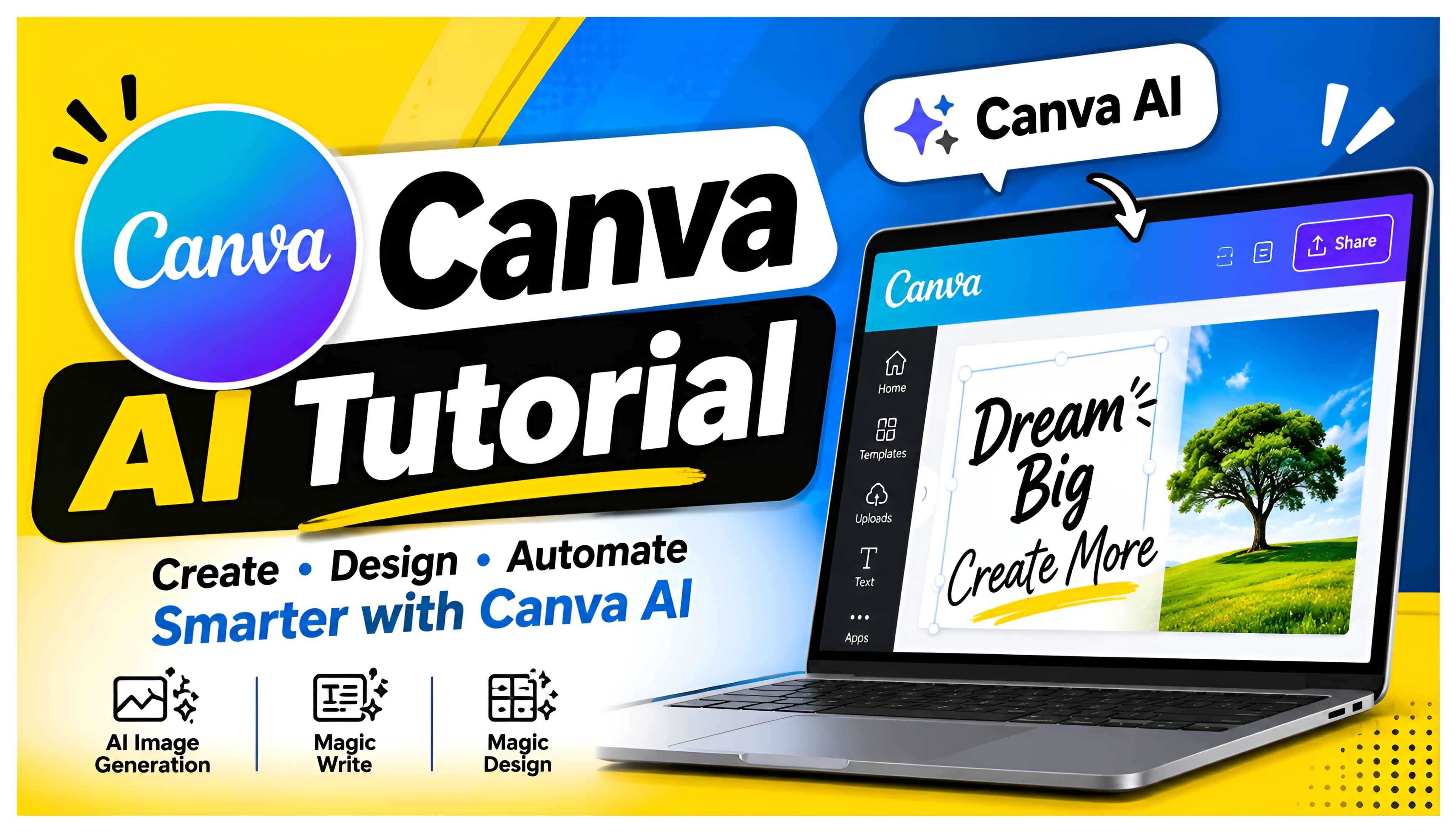
Creating a good design can take time, especially when you are new to graphic design. You may have an idea for a social media post, presentation, poster, or business flyer, but you may not know where to start. Canva AI can make this process easier. It uses artificial intelligence to help you create, edit, and improve visual content with simple instructions.
In this Canva AI tutorial, you will learn what Canva AI is, how to open it, what its main tools can do, and how to use them for real projects. You will also learn about its free and paid access, common limits, and a few tips for getting better results. The steps are written for beginners, so you do not need professional design skills to follow along.
1. What Is Canva AI?
Canva AI is a set of artificial intelligence features built into Canva. It helps people create and edit designs, images, videos, and written content. Instead of doing every task by hand, you can describe what you want in normal language and let Canva AI help with the first version.
For example, you can ask it to make a social media post for a coffee shop, create a presentation about climate change, or suggest text for a product advertisement. You can then open the result in the Canva editor and change the words, colours, images, layout, and other details.
Canva AI is useful for beginners, students, small business owners, teachers, and content creators. It can save time when starting a project, but you should still review the result before using it.
2. How Does Canva AI Work?
Canva AI uses your instructions, also called prompts, to understand the type of content you want. A prompt is simply a short description of your idea. The more clearly you explain the task, the easier it is for the tool to understand what you need.
For example, a short prompt such as “Make a business poster” gives Canva little information. A clearer prompt can explain the business, audience, style, colours, and purpose. Canva AI uses those details to prepare a starting design or content that you can improve.
The exact result depends on the feature you choose. Some tools create a new design, while others help write text, generate an image, or edit something that already exists. Canva AI is designed to work with the wider Canva editor, so you can continue making changes after the AI has created a first draft.
3. Main Canva AI Features
Canva includes several AI-powered tools. Their names, availability, and limits may change over time, but the following features are useful to understand when learning Canva AI.
Canva AI
Canva AI lets you describe a design or editing task through a conversation. You can ask it to create a design, make changes, or refine an existing result. With supported plans and features, it can also use additional context such as your existing designs or brand materials.
Magic Design
Magic Design helps turn an idea or uploaded media into a ready-made design layout. It can help you start a presentation, social media post, or other visual project. You can then change the template, text, images, and colours to fit your needs.
Magic Media
Magic Media can create images and short video clips from written prompts. For example, you can describe a peaceful mountain landscape or a colourful abstract background. The generated result can be added to a Canva design and edited further.
Magic Write
Magic Write helps you create or improve written content. You can use it to draft captions, brainstorm ideas, write short descriptions, or make a paragraph clearer. Always check the facts, spelling, tone, and details before publishing AI-written text.
Magic Edit
Magic Edit helps you change part of an image with a written instruction. Depending on the available options, you can select an area and ask Canva to replace or add an object. This can be helpful when a photo needs a small change but you do not want to rebuild the whole design.
Background Remover
Background Remover can separate a subject from the background of an image. It is useful for product photos, profile images, and promotional graphics. Access to this feature may depend on your Canva plan and current feature limits.
Magic Expand
Magic Expand can extend an image beyond its original edges by generating content around it. This may help when a photo does not fit the size or shape of your design. Review the new edges carefully because generated details may not always match the original photo perfectly.
Magic Eraser
Magic Eraser helps remove unwanted objects or details from an image. You can mark the area you want to remove, then let Canva fill the space. Check the edited area at full size to make sure the result looks natural.
4. How to Access Canva AI
You need a Canva account to use Canva's design tools. You can use Canva in a web browser or through its mobile app. The layout may look a little different on a phone, tablet, or computer, but the main process is similar.
- Open the official Canva website.
- Sign in to your existing account or create a new account.
- Open the Canva homepage.
- Look for Canva AI in the side navigation or the available AI entry point.
- Select it to open the AI workspace.
- Type a prompt describing what you want to create, or choose one of the suggested design types.
- Submit your prompt and wait for Canva to prepare the result.
Canva may show different tools or options depending on your account, region, device, and plan. If you cannot find a feature, check Canva's Help Center to see whether it is available for your account.
5. How to Create a Design with Canva AI
One of the easiest ways to begin is to ask Canva AI to create a simple design. You can use this method for a social media post, event poster, presentation, or basic business graphic.
Step 1: Choose the type of design
Open Canva AI and decide what you want to make. Be specific about the format. For example, say “Instagram square post” instead of only saying “social media design.”
Step 2: Describe your idea
Write a prompt with the topic, audience, purpose, and visual style. You can also mention the main text and colours you want to use.
Step 3: Submit the prompt
Send your prompt to Canva AI. It will prepare a design or guide you to the next step. Depending on the result, you may need to choose a design and open it in the Canva editor.
Step 4: Review the first draft
Check the layout, text, images, colours, and spacing. AI-generated designs are starting points, not finished work. Make sure the main message is easy to read and that important details are correct.
Step 5: Edit and save your design
Use the Canva editor to change anything that needs improvement. When you are happy with the result, use Canva's download or sharing options. Choose a file type that fits your purpose, such as PNG for many digital graphics or PDF for many documents and print projects.
Example prompt for a social media post
Create a clean square Instagram post for a small coffee shop. Promote a new iced coffee. Use warm brown and cream colours, a clear headline, a modern layout, and space for the shop logo. Make the design friendly and easy to read on a mobile screen.
6. How to Generate an Image with AI
Canva's AI image generation tools can help you make a visual when you do not have a suitable photo. You can describe the subject, setting, style, lighting, and image shape. The available generation options may vary by plan and Canva's current AI system.
- Open a Canva design or the Canva AI workspace.
- Find the image-generation option, such as Magic Media, if it is available in your account.
- Choose image generation rather than video generation when you need a still image.
- Write a clear description of the image you want.
- Choose any available style or format options.
- Generate the image and review the results.
- Add the image to your design and adjust its size or position.
Example image prompt
A realistic product photo of a reusable glass water bottle on a clean wooden desk, soft natural window light, simple neutral background, modern commercial photography, no text, landscape composition.
Be clear about what should appear in the image. If you need a picture for a website banner, mention that it should have a wide landscape composition and enough empty space for a heading. If the first result is not right, adjust the prompt and try again.
7. How to Write Content with Canva AI
Canva AI writing features, including Magic Write where available, can help you prepare short text for a design. You can use them for headlines, product descriptions, presentation points, event announcements, and social media captions.
- Open a design that contains a text area, or open the relevant writing feature.
- Choose Magic Write or the available Canva AI writing option.
- Tell it what type of text you need and who will read it.
- Include a preferred tone and length.
- Review the draft and edit it to match your message.
Example writing prompt
Write three short and friendly Instagram captions for a local bakery announcing fresh chocolate cookies. Use simple English, include a clear invitation to visit, and keep each caption under 25 words.
Do not publish AI-written content without checking it. AI can produce incorrect facts, unclear wording, or claims that your business cannot support. Add your own details and make sure the final text sounds right for your audience.
8. How to Edit and Improve a Design
After Canva AI creates a design, you can continue working on it in the Canva editor. This is an important step because the first result may not match your exact needs.
- Change the text: Correct spelling, update the headline, and make the message shorter when needed.
- Adjust colours: Use colours that match your brand or make the text easy to read.
- Replace images: Use a more suitable photo or a visual that better explains the message.
- Improve spacing: Keep enough space between headings, text, and other elements.
- Check alignment: Make sure objects and text look balanced.
- Keep a consistent style: Use a small set of fonts and colours across related designs.
You can also continue a conversation with Canva AI and ask it to refine a design when that feature is available. For example, you might ask it to make the headline larger, use a calmer colour palette, or simplify a busy layout. Review every change before you accept it.
9. How to Write Better Canva AI Prompts
A good prompt gives Canva a clear picture of the result you want. You do not need special technical words. Simple details are often enough to improve the result.
| Prompt detail | What to include |
|---|---|
| Purpose | What the design should do, such as promote a product or explain a topic. |
| Audience | Who will see it, such as students, customers, or social media followers. |
| Format | The type and shape, such as a poster, presentation, or square post. |
| Style | The look you want, such as modern, simple, playful, or professional. |
| Colours | Any colours that should be used or avoided. |
| Text | The exact headline, key points, or call to action when you already know them. |
Weak prompt vs better prompt
Weak prompt: Make a poster for a shop.
Better prompt: Create a vertical poster for a small bookshop's weekend sale. Use a calm blue and white colour palette, show a neat stack of books, add the headline “Weekend Book Sale,” and leave space at the bottom for the shop address. Keep the design clean and readable.
Start with the main request. Then add details one by one. If the result is close but not correct, explain what should change instead of writing the whole prompt again.
10. Canva AI: Free vs Paid Access
Canva offers different plans, and AI access is not the same for every user. Some AI features are available to free users with limits. Other features, higher usage levels, or newer Canva AI experiences may require an eligible paid plan.
Canva's current Help Center explains that AI access depends on the plan and the type of tool. Some features use a shared monthly AI allowance. More advanced tools may use more of that allowance, and the amount available can vary by plan. Canva may also change its plans, feature access, and usage rules.
| Access type | What to expect |
|---|---|
| Canva Free | Access to selected AI features, usually with usage limits. Some advanced features may not be included. |
| Paid Canva plans | More AI access or higher allowances, depending on the plan and feature. Some advanced Canva AI experiences are plan-dependent. |
| Education and other eligible plans | Access depends on the plan type, account eligibility, and the feature being used. |
Important: Do not assume that every AI feature is unlimited or free. Before starting a large project, check the feature's access label and your remaining AI allowance. You can find current details in Canva's official AI usage guide and pricing page.
11. What Can You Create with Canva AI?
Canva AI can support many visual and content tasks. Here are some practical examples:
- Social media content: Create post layouts, promotional graphics, and simple campaign designs.
- Presentations: Turn a topic or outline into a presentation draft that you can review and edit.
- Posters and flyers: Prepare event posters, sale announcements, and information flyers.
- Business graphics: Make draft product promotions, menus, banners, and simple brand materials.
- Learning materials: Create worksheets, visual notes, and classroom presentation drafts.
- Images and short videos: Generate visual content for a design when the relevant AI feature is available.
- Written content: Prepare captions, short descriptions, and headline ideas.
For business use, keep your brand name, logo, colours, and contact details accurate. For school or educational work, check the facts and make sure the final material meets the task requirements.
12. Limitations and Things to Check
Canva AI can speed up creative work, but it does not replace careful review. Keep these points in mind:
- AI can make mistakes: Generated text may include incorrect facts, spelling errors, or confusing wording.
- Results can vary: The same prompt may produce different designs, and the first result may not be the best one.
- Usage limits apply: Some AI features use a monthly allowance or require a specific plan.
- Text in images needs checking: Generated images may contain unclear or misspelled text. Add important text in the editor instead.
- Review image details: AI may create objects, shapes, or small details that look unusual.
- Be careful with private information: Do not add sensitive personal, customer, or business information unless you understand the service's privacy terms and have permission.
- Check usage rights: Read Canva's current terms before using AI-generated work in a product, advertisement, or commercial project.
Canva says AI-generated work may not receive copyright protection in every country, and similar prompts can produce similar results for different users. For important commercial work, read Canva's guidance on using Magic Studio safely and legally. Laws and rights can differ by location, so do not treat an AI-generated result as automatically exclusive.
13. Frequently Asked Questions
Is Canva AI free to use?
Some Canva AI features are available on the Free plan, but access and usage limits vary. Other features may require a paid plan. Check the feature details and your account's AI allowance before using it.
Can beginners use Canva AI?
Yes. Canva AI is designed to help people create and edit content with written instructions. Beginners can start with a simple prompt and then use the Canva editor to make changes.
Can Canva AI create images from text?
Yes. Canva offers text-based image generation through supported AI features such as Magic Media. Availability, limits, and output options depend on your account and the current tool.
Can Canva AI create presentations?
Canva AI and related design features can help create presentation drafts from a topic or prompt. You should review the slide order, facts, and design before presenting or sharing the file.
Can I use Canva AI on my phone?
Canva has mobile apps, and many Canva features can be used on a phone. The exact AI tools and controls may differ from the desktop experience.
Do I need design skills to use Canva AI?
No professional design skills are needed to get started. However, basic design knowledge can help you improve the layout, colours, readability, and final quality.
Can I use Canva AI designs for commercial work?
Canva allows many types of personal and commercial use when you follow its terms. The rules can depend on the content and feature used, so review Canva's current AI Product Terms and licensing guidance before using a design commercially.
Final Thoughts
Canva AI makes it easier to move from an idea to a first design. It can help with layouts, images, writing, and editing, while the Canva editor gives you a place to review and improve the result. This can be useful for students, creators, and small businesses that need visual content but do not have a full design team.
The best way to learn Canva AI is to start with one small project. Write a clear prompt, review what Canva creates, and make your own changes. Always check the facts, design details, usage limits, and rights before sharing or publishing the final work.
To explore the tools and instructions directly, visit the official Canva website and the Canva AI Help Center guide.